Setup a Process
This guide walks you through setting up an end-to-end automation: a workqueue to hold your work items, a process to handle them, and a trigger to fire the automation when items are waiting.
Create the Workqueue
Navigate to Workqueues in the sidebar and click + Create. Give your workqueue a descriptive name — your automation will reference it by name, so choose something that reflects what the queue holds.
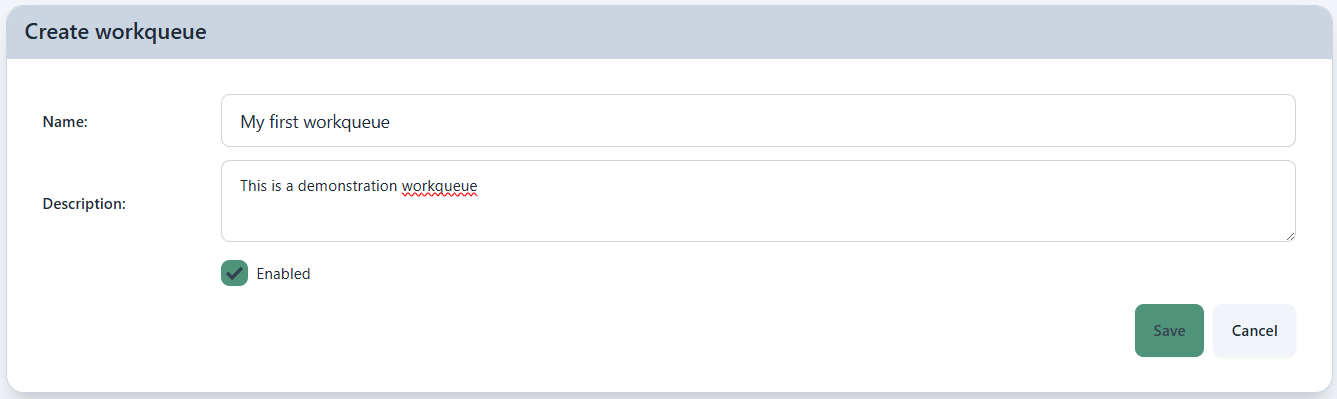
Once created, the workqueue appears in the list. Items are added programmatically by your automations.
Create the Process
Navigate to Processes in the sidebar and click + Create. Fill in the details:
- Name — a human-readable label for the automation
- Git repository — the URL of the repository containing your automation code
- Git options — optional extra arguments for
git clone, e.g.--branch=dev --depth=1to run from a specific branch or tag. Leave empty to clone the default branch. - Requirements — leave as
pythonunless your automation needs specific packages
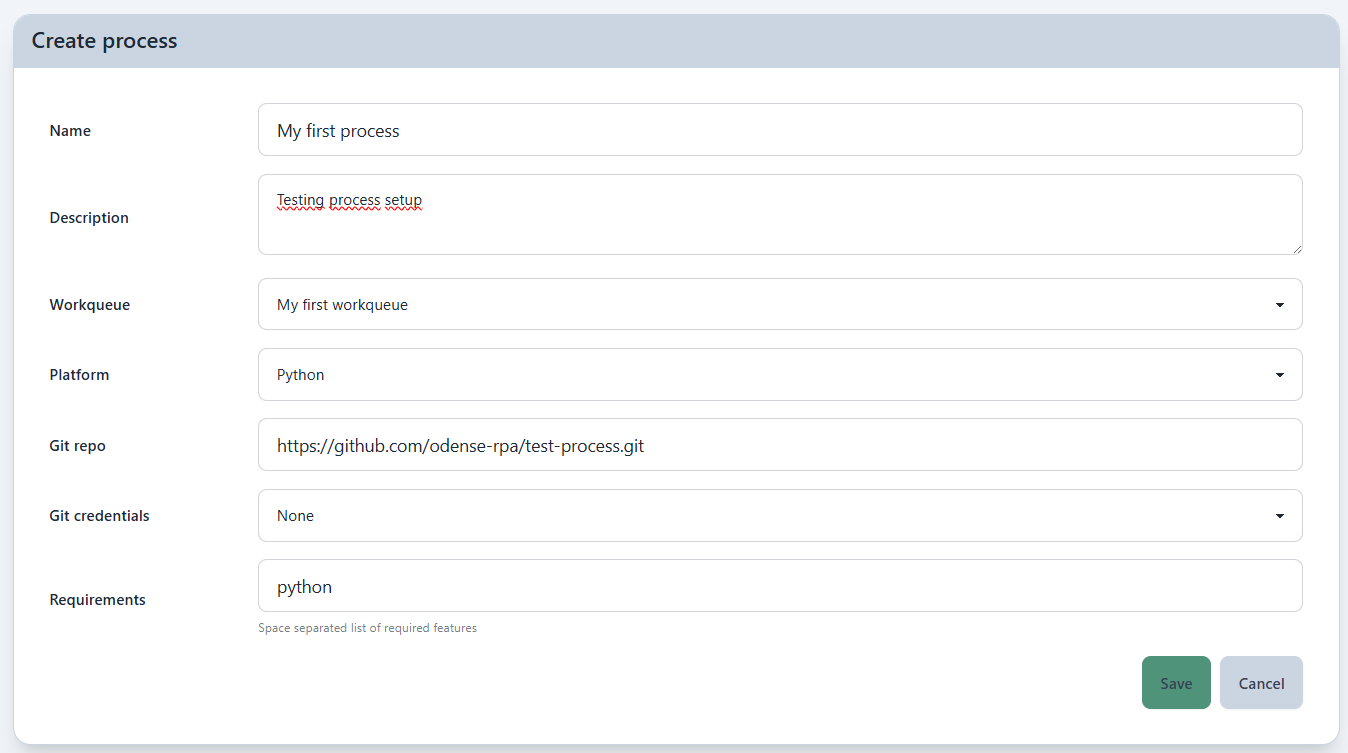
If you haven't written an automation yet, use our process-template to get started, or just point it at our test-process to see something run right away.
Create a Trigger
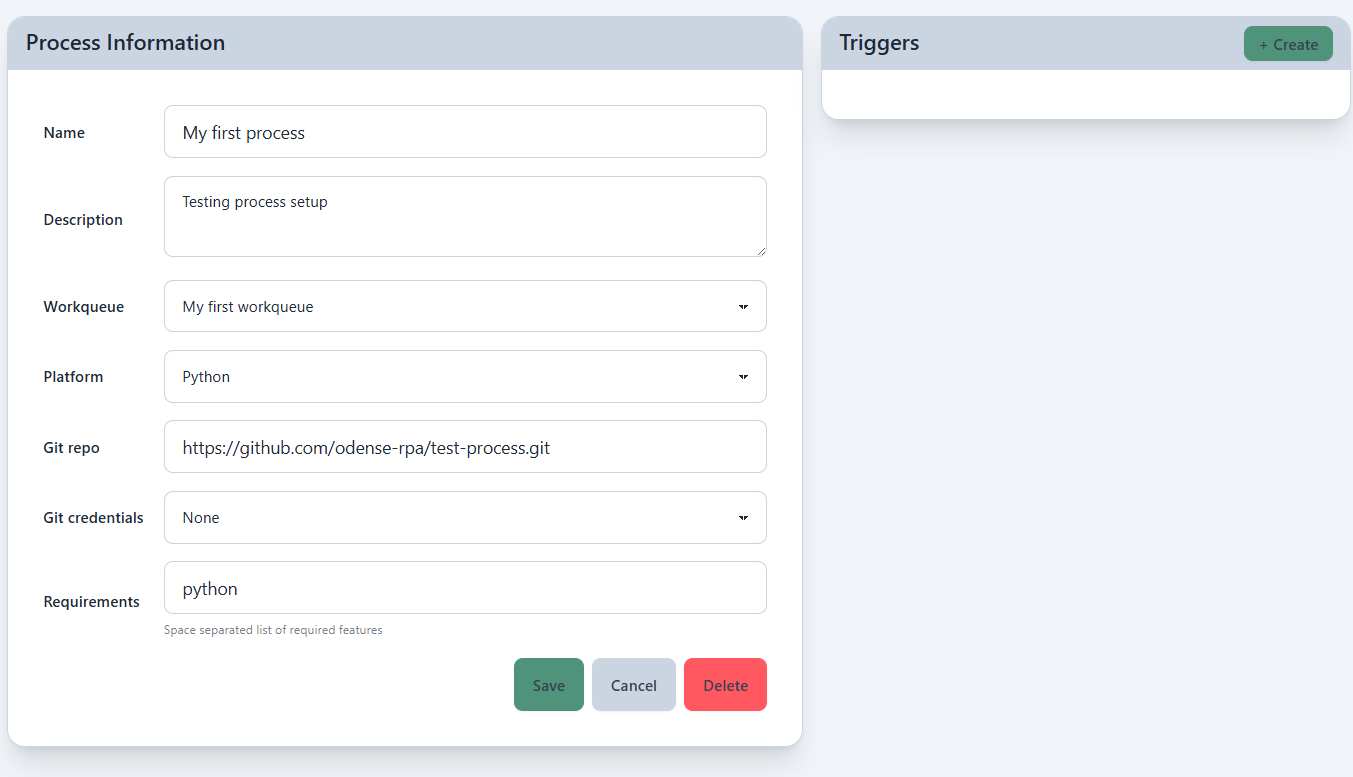
Open the process you just created and navigate to the Triggers tab. You can add multiple triggers to the same process.
Cron trigger
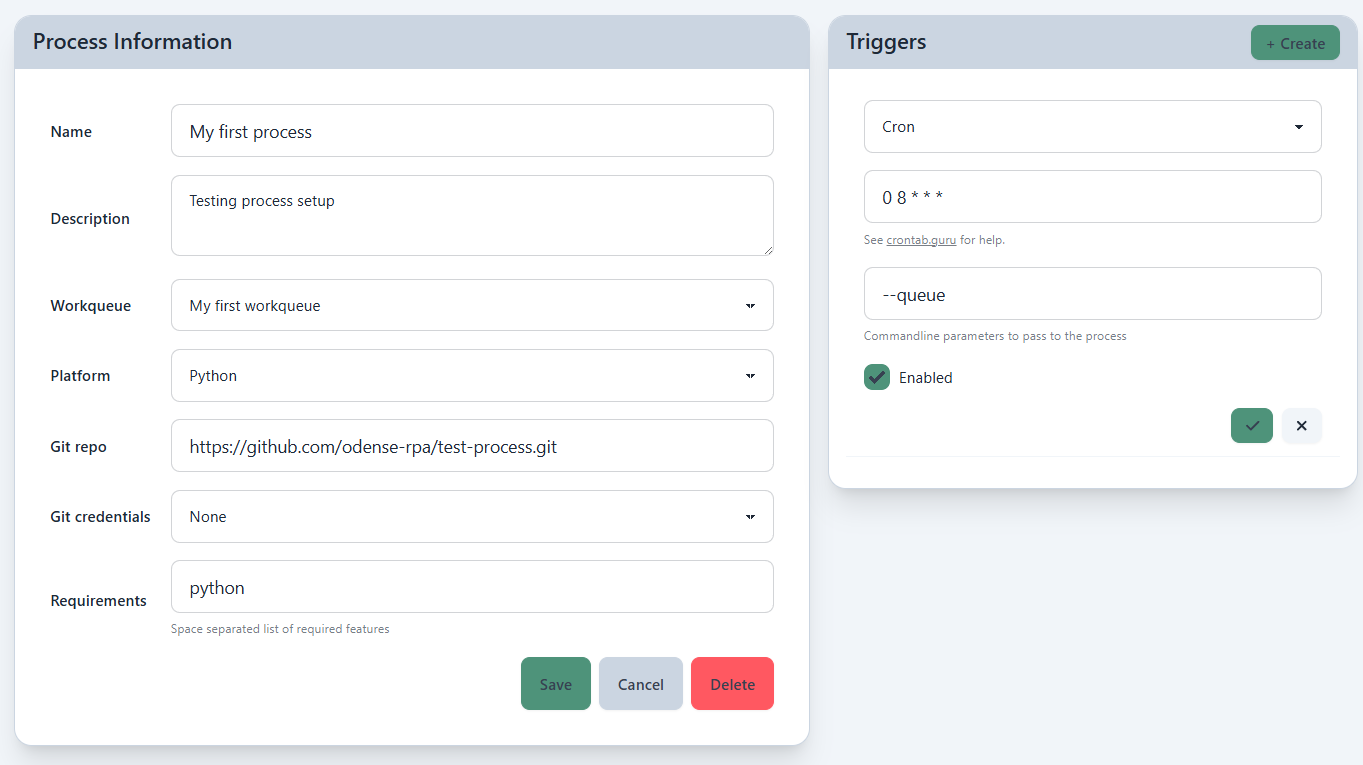
To run the process on a fixed schedule, click + Add trigger and select Cron. For a daily run at 8am, use:
0 8 * * *
You can pass parameters to the process at trigger time. A common convention is to pass --queue so the automation knows it should read from a workqueue — though this is just a convention, not a requirement enforced by Automation Server.
Workqueue trigger
To run the process automatically whenever items are waiting, click + Add trigger and select Workqueue. Choose the workqueue you created in the first step.
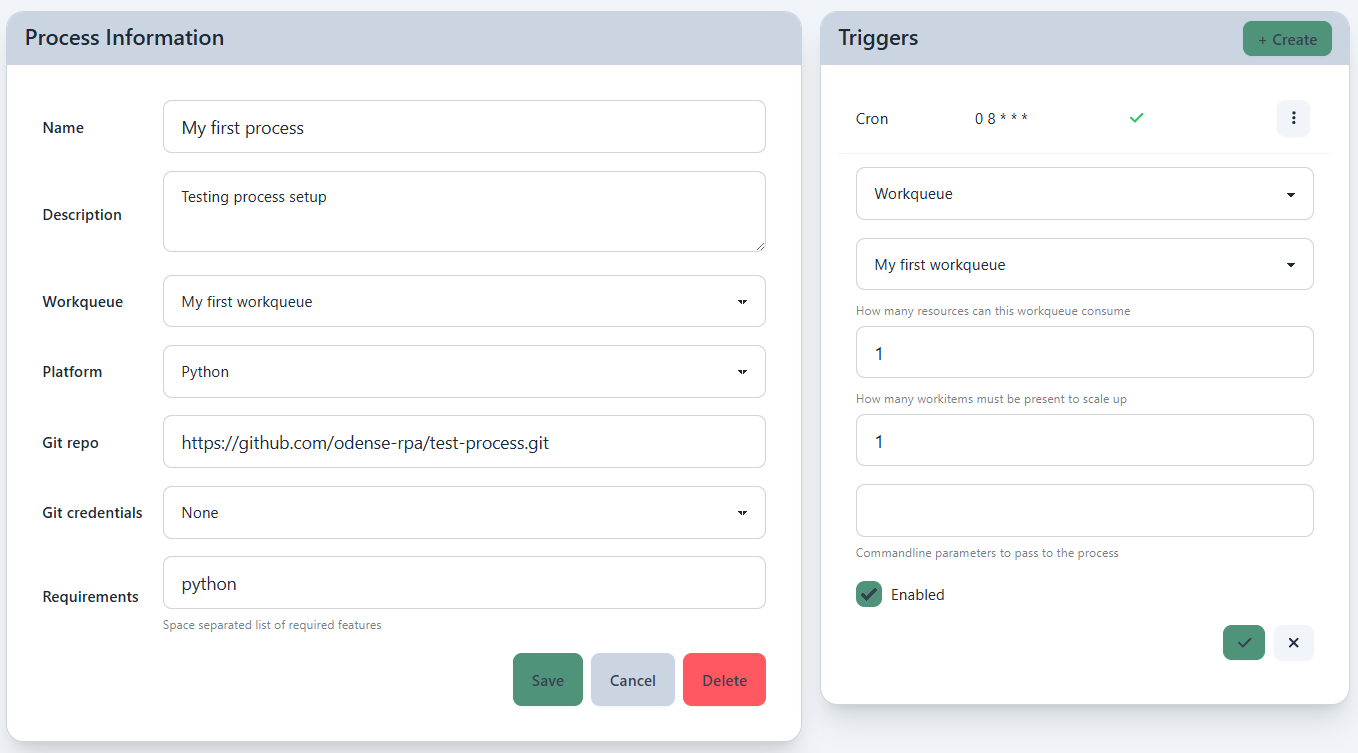
Automation Server will monitor the queue and dispatch a session to an available worker whenever items are waiting.
Next Steps
With the workqueue, process, and trigger in place, you can start pushing items into the queue. See Writing Automations for how to add items to the queue from your automation code.